
HideFile puts private files inside an ordinary photo, PDF or video, encrypted with a password, in the browser. This walkthrough follows one locked file from start to finish with real screenshots: choose a cover, set a password, add files, save, open the saved cover as a plain picture, then reopen it with the password.
The example uses four harmless files (two beach photos, a receipt PDF and a short text note) and a generated landscape picture as the cover. The screenshots come from the current web app in a desktop browser, with iPhone screenshots where the phone flow differs. Nothing here needs an account, an app store or an install.
The home screen has two doors and no sign-up
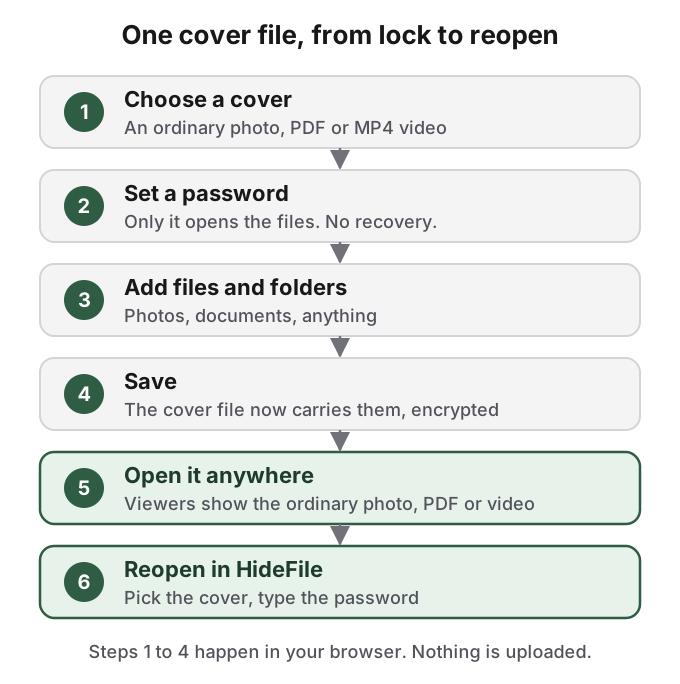
Open hidefile.app and you get two choices: Lock new files and Open a locked file. There is no account to create, no email field and nothing to sign in to. The line under the buttons states the storage model: locked files stay on your device, and cloud storage is optional and goes to your own bucket.
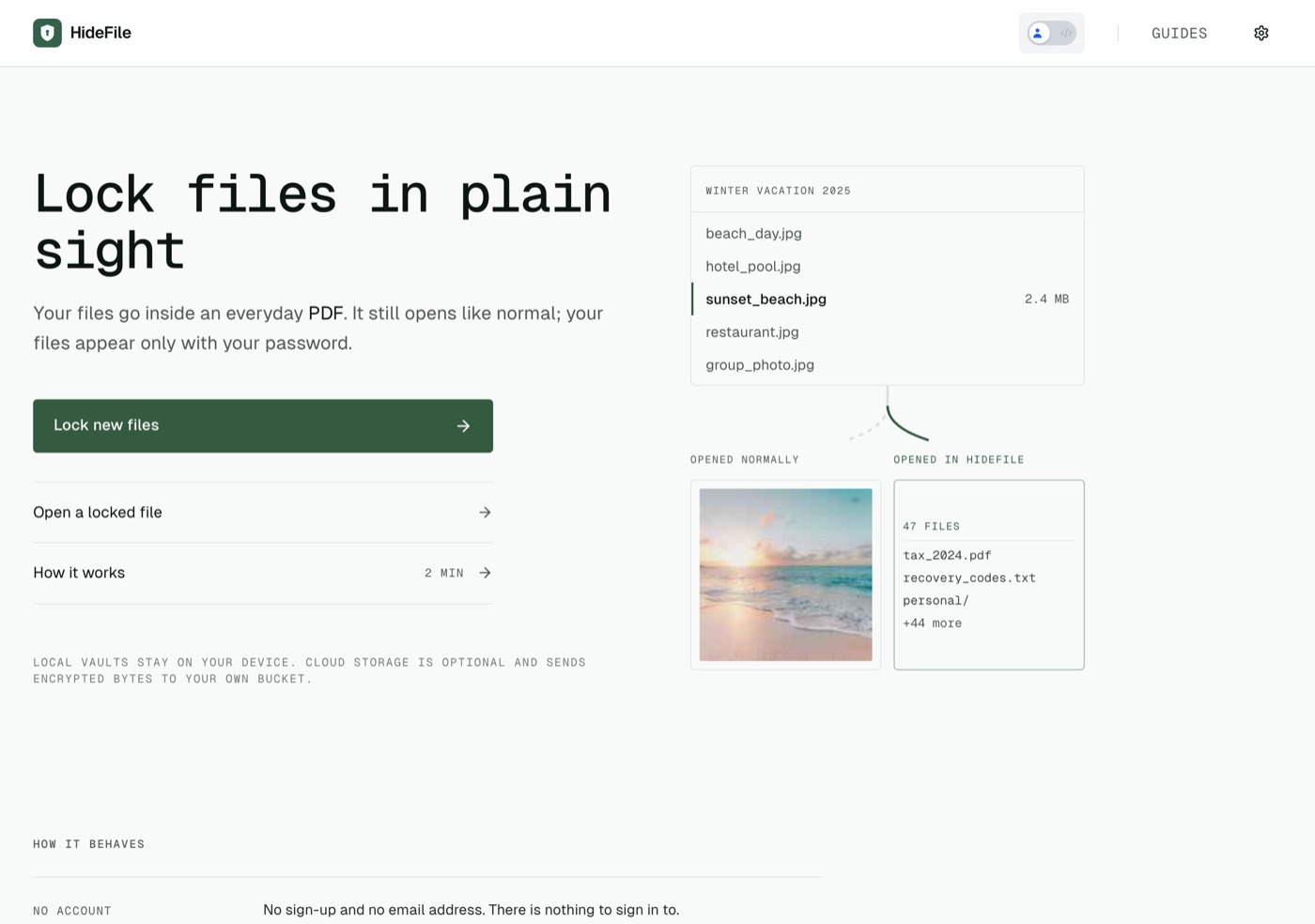
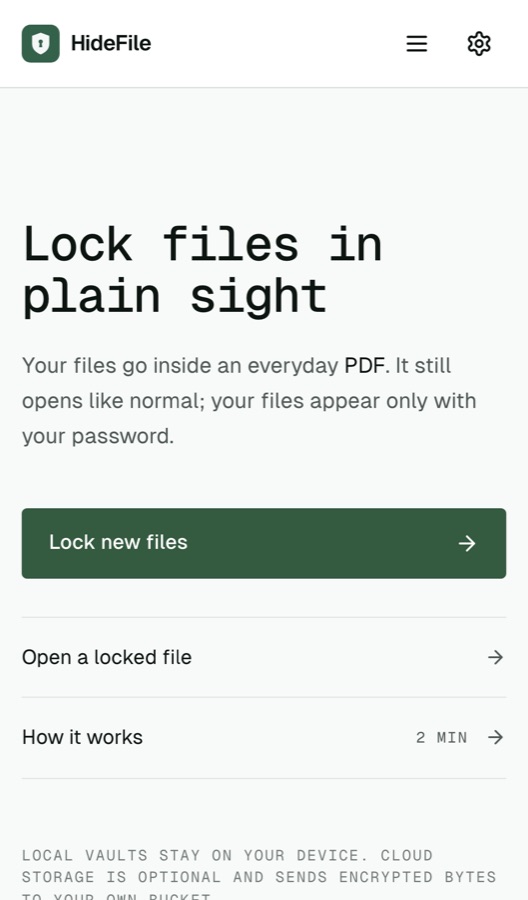
How to hide files in a photo with HideFile
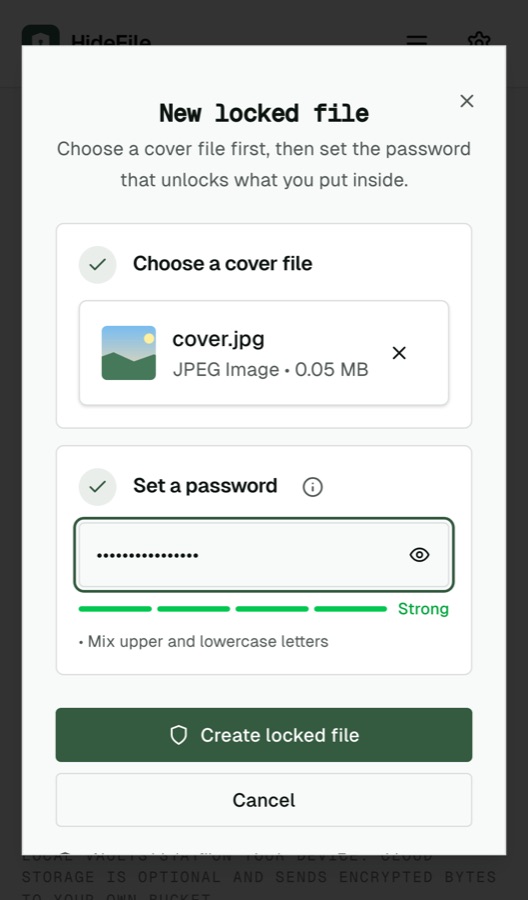
The procedure is the same on a phone and a computer.
- Tap Lock new files.
- Under Choose a cover file, drop a file or click to browse. PNG, JPEG, PDF and MP4 are supported.
- Under Set a password, type a password and watch the strength meter.
- Click Create locked file.
- Click Add, then Add files, Add folder or New folder.
- Click Save to write the cover file with your files inside it.
The sections below go through each step and what is actually happening.
Step 1: choose the cover
The cover is the file that still opens normally. Pick something unremarkable that fits where it will live: a landscape in a camera roll, a manual in a documents folder, a clip among other videos. If you have nothing to hand, Use a sample offers built-in covers.
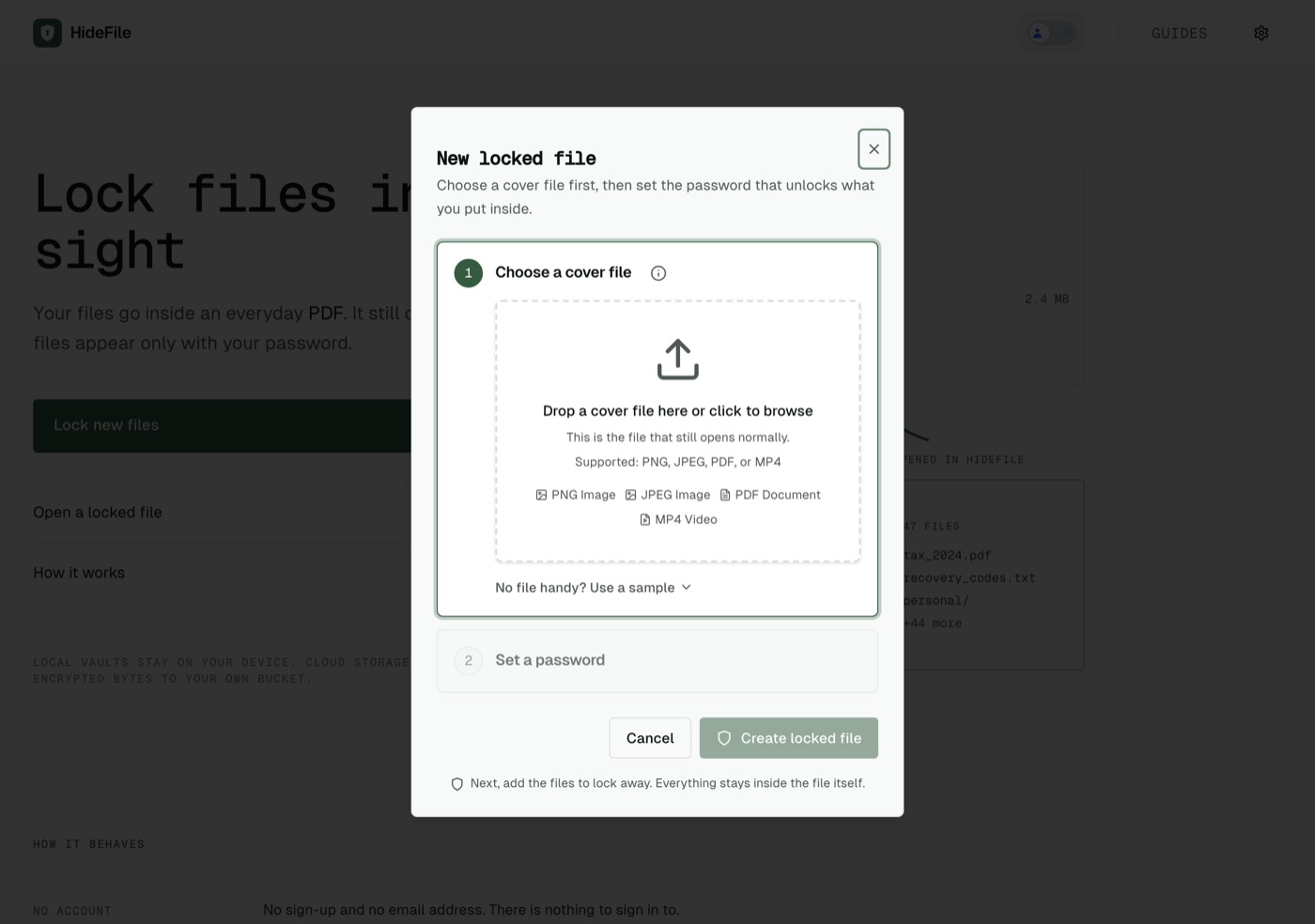
Once chosen, the cover shows as a thumbnail with its type and size. HideFile reads a copy; the original file on your disk is not changed.
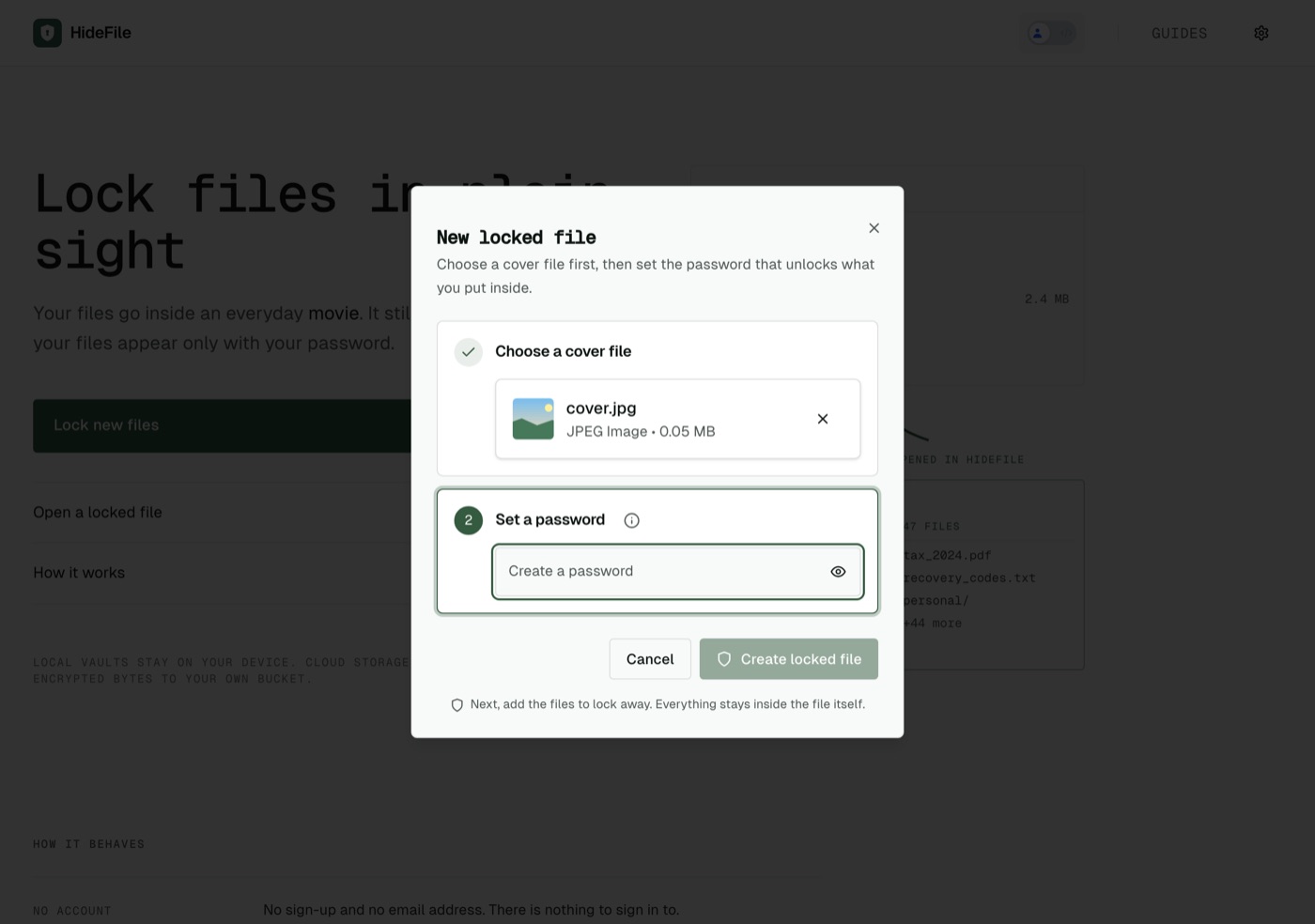
Step 2: set the password, knowing there is no reset
This password is the only key. We never receive it, so there is no reset email, no recovery question and no support process that can open the file. The strength meter is a guide; a long passphrase of several unrelated words is easier to remember than a short jumble and harder to guess. Write it down somewhere safe, away from the device that holds the cover.
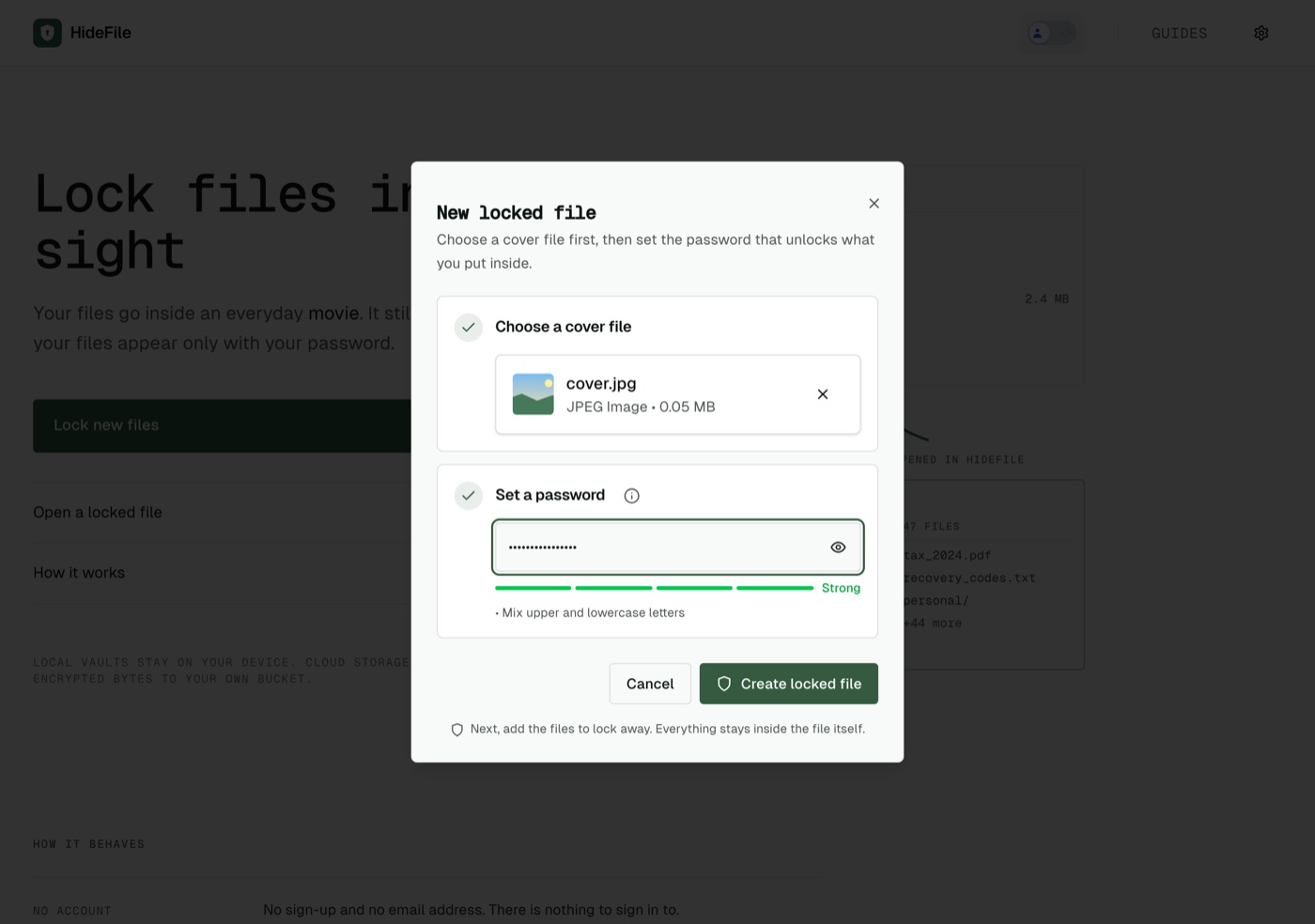
Creating the locked file pauses for a moment. That pause is the password being turned into a key with a deliberately slow method, which makes every guess slow for an attacker too. The security page has the exact parameters.
Step 3: add files and folders
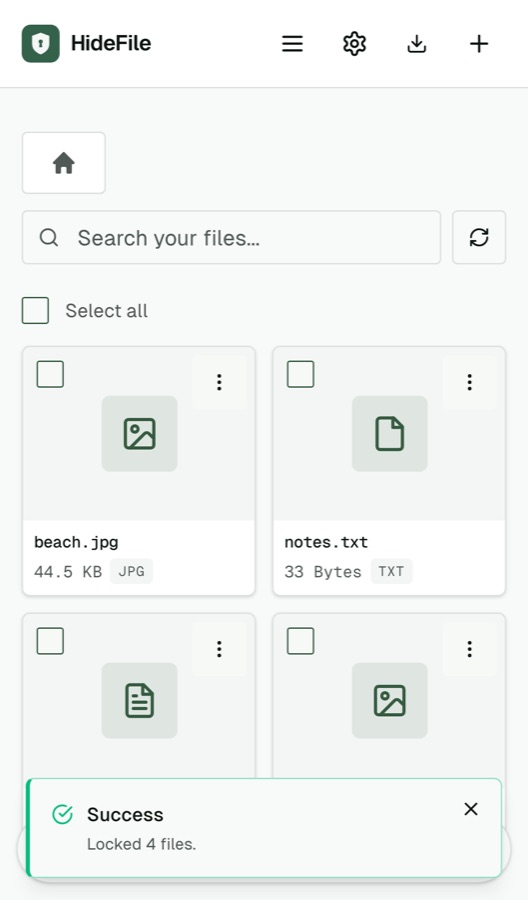
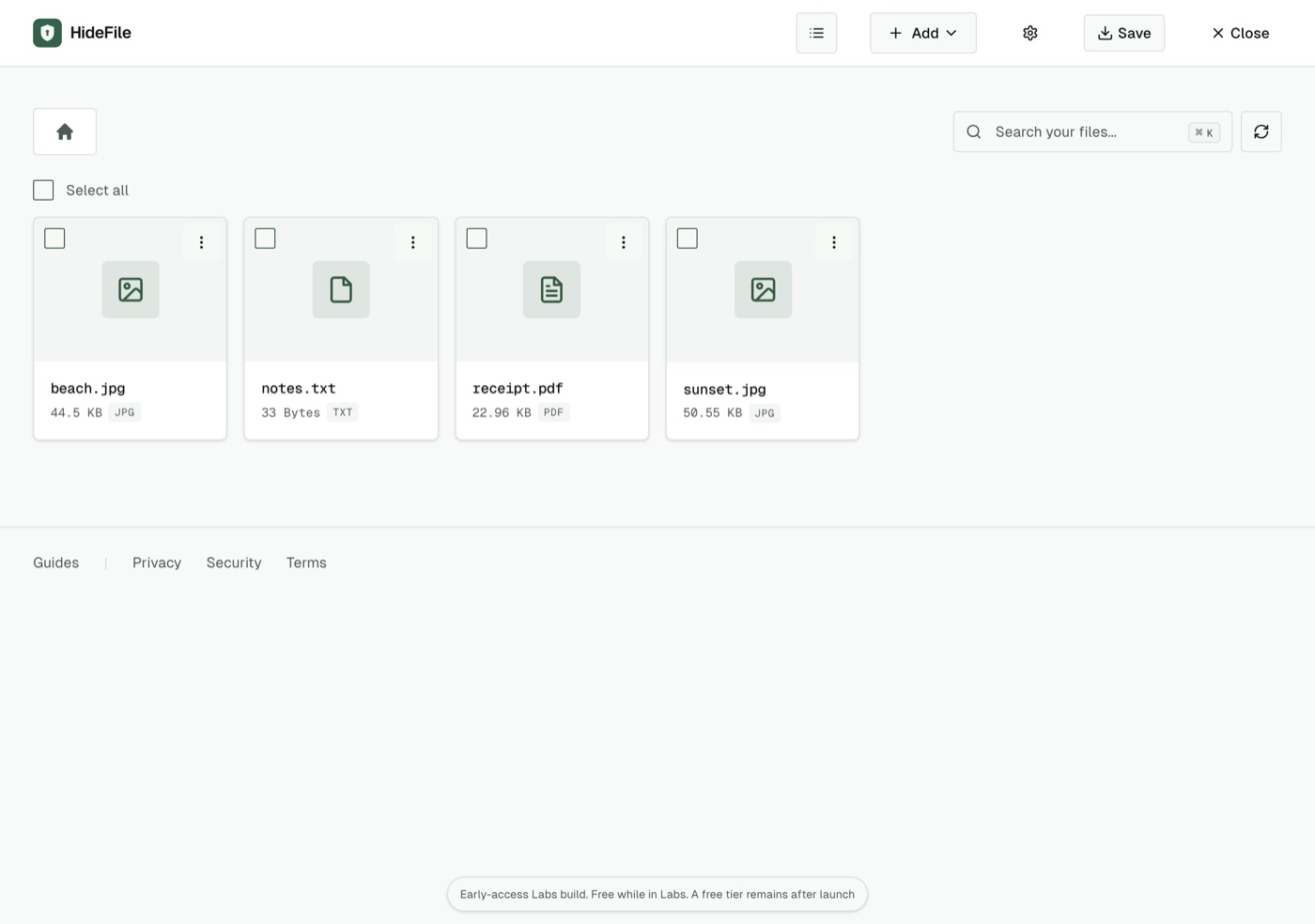
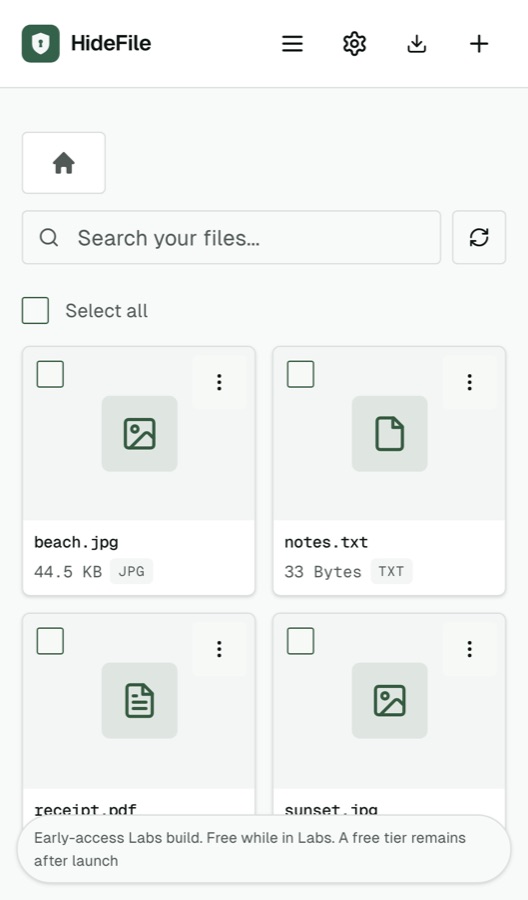
The new locked file opens empty. Add offers single files, a whole folder, or a new folder you name yourself, so you can keep some structure inside. Photos, PDFs, text, video and other documents all go in.
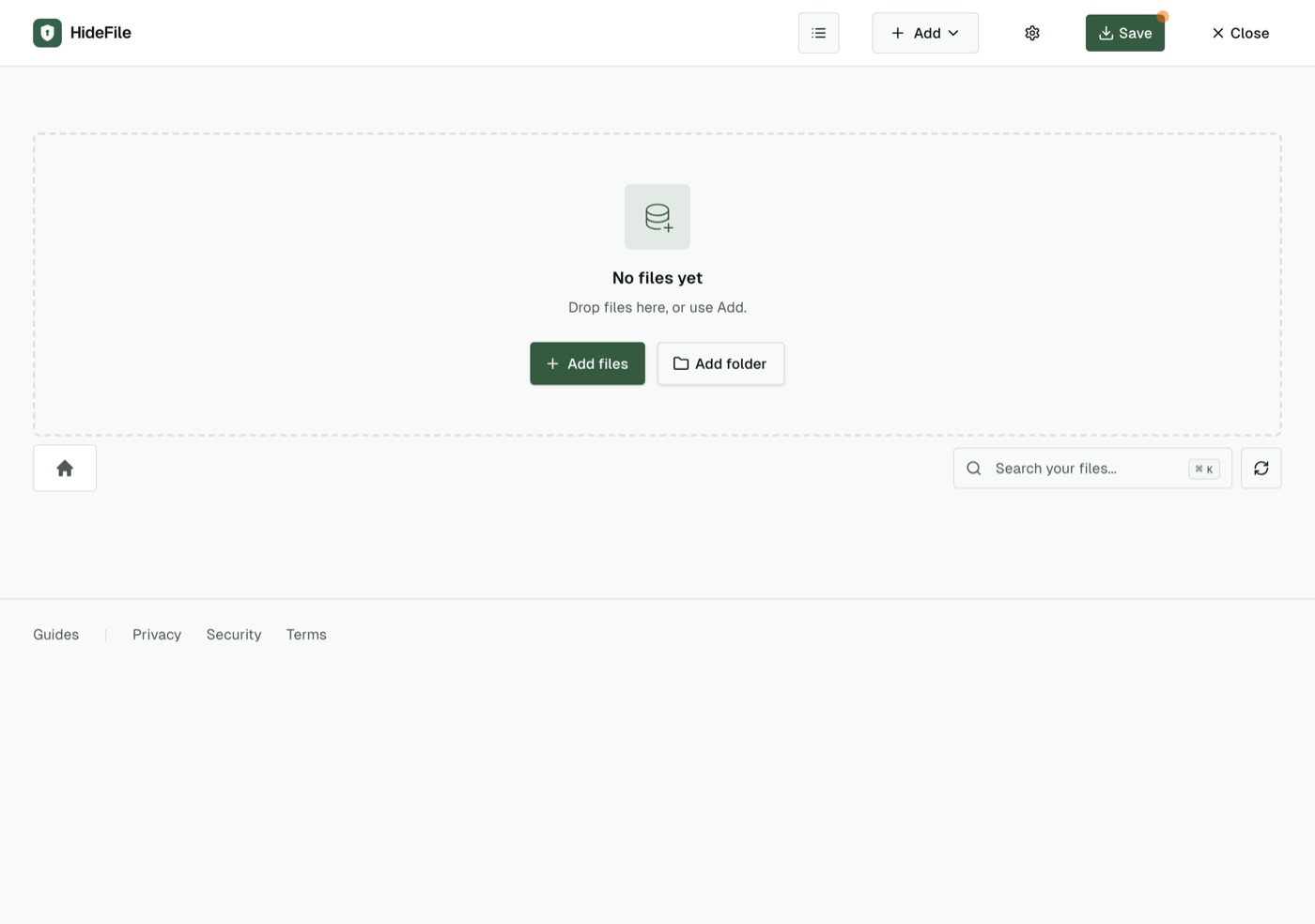
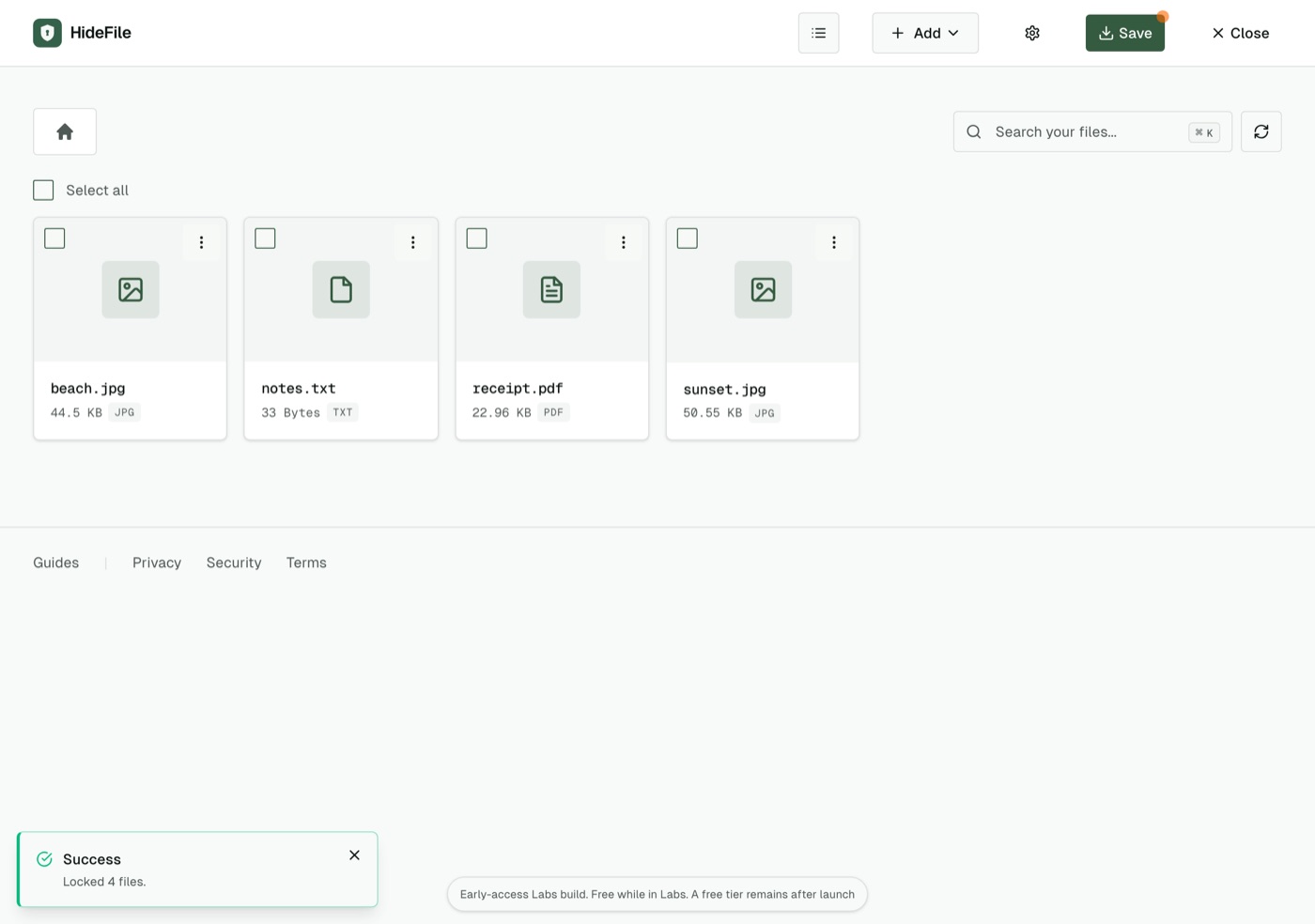
The files are encrypted as they go in, but they are only in the browser's working copy until you save. HideFile also works on copies: the originals stay where they were. If the point is that nobody finds them, delete the originals afterwards, including from Recently Deleted or the Trash.
Step 4: save the cover file
Save writes the cover with your files sealed inside it. On a desktop browser it downloads the file or asks where to put it. On iPhone it opens the share sheet; choose Save to Files so it stays a file. The orange dot disappears once the save completes.
The saved cover opens as an ordinary picture
Double-click the saved file, or open it in Photos, Preview or a browser tab, and you see the cover: here, a landscape. Nothing on screen says a locked file is inside it. Your private files are stored as encrypted records within the cover's own file structure, which ordinary viewers skip.

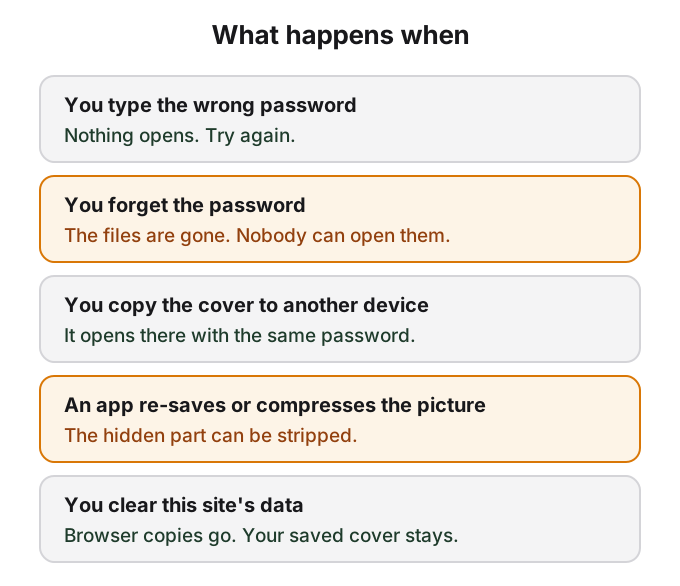
Two things give it away, and they are worth knowing before you rely on it. The file is larger than a picture like it would normally be, by roughly the size of what you put inside. And a purpose-built forensic tool, or someone who knows HideFile exists and examines the file closely, can tell that data was added. The contents stay encrypted either way. Can hidden photos be detected explains what an examiner finds.
Keep the cover as a file. Messaging apps, social networks and photo editors that re-save or compress pictures can strip the hidden part, and then the files inside are gone. Send it as a document attachment, copy it to a USB drive, or keep it in Files, Google Drive, iCloud Drive or Dropbox as an ordinary file.
Reopening takes the cover and the password
On any device with a modern browser, open hidefile.app, choose Open a locked file, pick the cover and type the password. A cover saved on a laptop opens the same way on a phone.
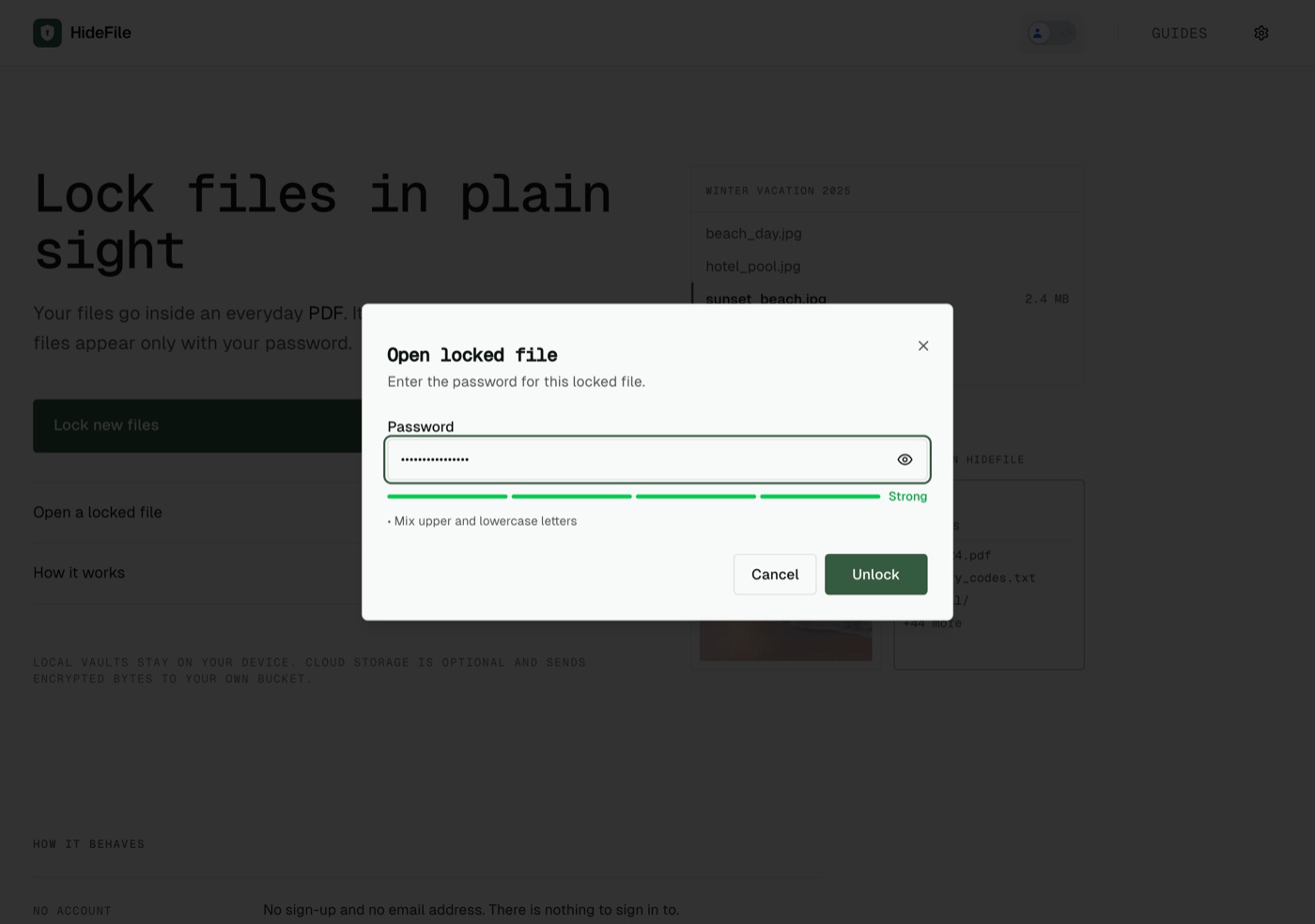
With the right password, the files appear, ready to preview, search, export one at a time or as a ZIP, or add to. Save again after any change. With a wrong password, the app says the password did not open the file, adding that the file may be corrupted if the password is correct, and shows nothing; there is no partial view.
To reopen faster, the browser keeps a copy of the last locked file you opened, still encrypted, for up to a day. On a shared or borrowed computer, clear the site's data afterwards so no copy stays behind.
What this demo does not show
HideFile stops casual snooping, not forensic tools. It does not protect an unlocked screen: while the files are open, anyone looking at the device sees them. It is the wrong tool for border searches, trained examiners or anyone who can force you to hand over a password. The security page covers the encryption and the threat model, and how HideFile compares sets it against the Hidden album, Locked Folder, Secure Folder and encrypted containers.
Sources
- HideFile: How HideFile protects you
- HideFile: Privacy Policy