
Google Photos has two ways to hide a photo. Archive removes it from the main Photos view and nothing more. Locked Folder moves it behind your phone's screen lock, out of the grid, search, albums and other apps. To use it, open Google Photos, tap Collections, then Locked, and follow the setup.
The part most guides skip is backup. Locked Folder was built to keep photos on one phone only, and until late August 2023 it could not be backed up at all. Backup now exists, but it is a separate switch. With it off, a factory reset, an uninstall or a lost phone deletes everything in the folder, and Reddit is full of people who found out that way. This guide follows Google's help pages as checked on October 14, 2026.
Archive hides a photo from the grid, not from anyone looking
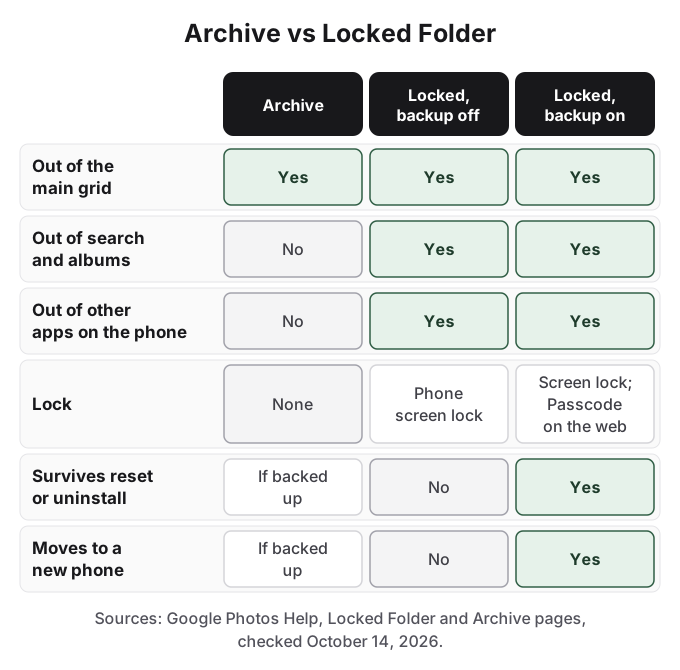
Archive is a tidying tool. Google's page says archived photos "Will still be in any albums that they were added to, search results, and folders on your device." Anyone who searches for "beach" or opens the album sees them, and any other app on the phone with photo access still reads them from the device folders. There is no lock. To archive, open the photo, tap More (three dots), then Archive; the photos sit under Collections > Archive.
Use Archive for screenshots and receipts that clutter the grid. Do not use it for anything you need to keep from another person.
How to use Google Photos Locked Folder
Locked Folder needs Android 6 or later (iOS 15 or later on iPhone) and a screen lock on the phone.
- Open Google Photos, tap Collections, then Locked.
- Tap Set up Locked Folder and unlock with your screen lock. Google offers to turn on backup at this point; say yes (see below).
- To move a photo in, open it in Photos, tap Add to, then Move to Locked Folder, then Move.
On a Pixel 4 or later, you can save straight from the camera: touch and hold the preview of your last shot next to the shutter, then tap Locked Folder.
Inside the folder, items do not appear in the Photos grid, Memories, search or albums, and they are not available to other apps on the phone, nor shown on a Nest Hub or through Chromecast (Google says that can take up to an hour). You cannot edit, share, add to an album or send them to Trash while they are inside; to do any of that, move them out first.
Two details catch people. First, moving a photo moves only the original. "Copies, edited versions, and shared photos and videos saved by others" stay where they were, so check for duplicates and for anything you already sent. Second, the lock is your phone's lock. Google: "Your Locked Folder password is the same as your device screen lock. You can't use a different Locked Folder password." A Reddit user in r/GooglePixel summed it up: "it's the same password information (and biometrics) as the phone's." A partner, parent or child who knows your PIN can open it. Google says it is "protected by Google Photos' standard encryption practices", which is not end-to-end encryption.
Locked Folder backup arrived in August 2023, and older articles miss it
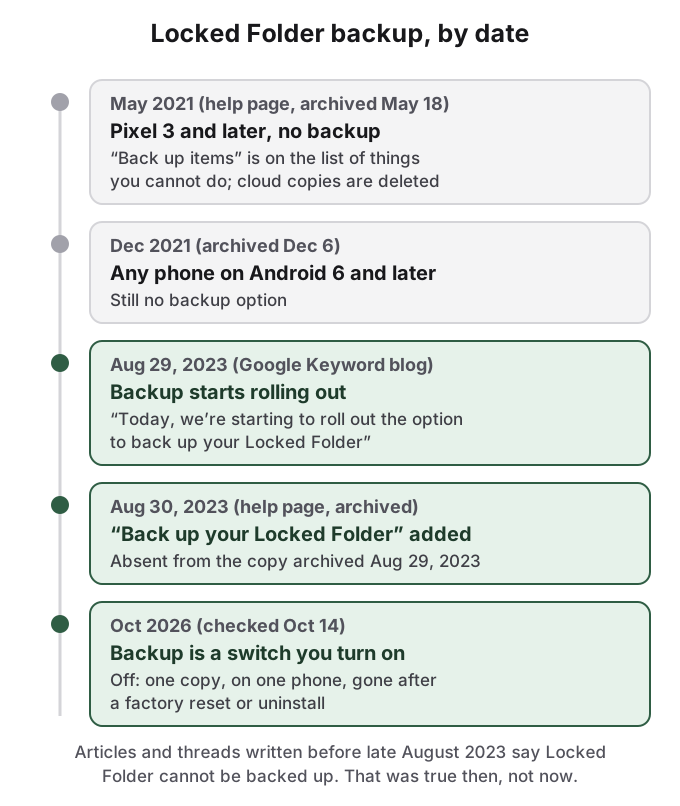
The Internet Archive tells the story. In May 2021 Google's help page said Locked Folder was coming to Pixel 3 and later phones, listed "Back up items" among the things you cannot do, and warned that "Cloud backups of these items will be deleted." By December 2021 it covered any phone on Android 6 or later, still with no backup. The copy archived on August 29, 2023 has no backup section. On that day Google's Keyword blog announced: "Today, we're starting to roll out the option to back up your Locked Folder." The copy archived on August 30, 2023 is the first with a "Back up your Locked Folder" section.
That matters because the internet has not caught up. Search "google photos locked folder backup" and Bing's answer is correct, citing the 2023 announcement.
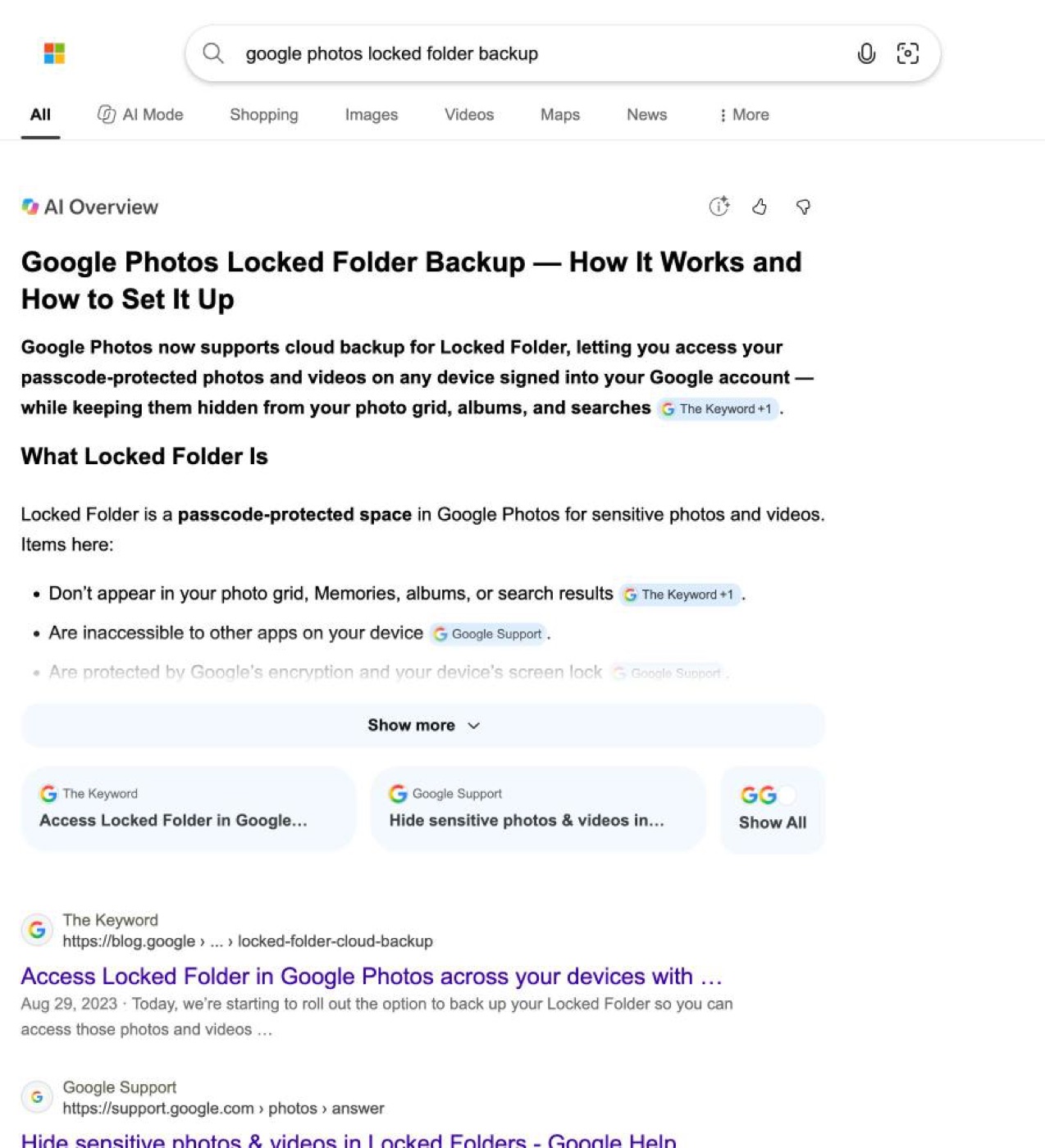
Search the plain feature name instead, and the results include articles and Reddit threads written before that date which say Locked Folder cannot be backed up. They were right when written and are wrong now. A commenter in an r/googlephotos thread said the option was added "maybe two years ago", yet the 2026 threads show people still do not know the switch exists.
Turn on Locked Folder backup, or accept one copy on one phone
- In Google Photos, tap your profile picture or initial at the top.
- Tap Photos settings, then Backup, then Back up Locked Folder.
- Unlock with your screen lock and turn Back up Locked Folder on.
Main photo backup has to be on first. You can also leave the switch off and back up single items: open the folder, long-press the items, tap Back up. Backed-up items count toward your Google storage, and they open on other devices signed into your account, including photos.google.com on a computer. Confirm on photos.google.com that the items are there before you rely on it.
With backup off, Google is blunt: items "will only be stored on that device", and you lose them if you uninstall the Photos app, clear its data, factory reset the phone, or the phone is damaged or lost. They are not carried over by cable or cloud transfer to a new phone. There is a trap in the move itself: "Google Photos backups of these items will be deleted if backup for Locked Folder is not turned on." Moving an already backed-up photo into the folder with backup off deletes the cloud copy and leaves the phone holding the only one.
When Locked Folder goes wrong
The failure stories on r/googlephotos follow that rule exactly.
One user moving from Android to an iPhone factory reset the old phone without backing up the folder; the top reply: "With the factory reset it got permanently deleted, I'm afraid." Another, whose phone ended up in the ocean in September 2026, asked whether the folder could be opened elsewhere; the answer turned on one setting, because without backup "Locked Folder stays on that phone only." In 2021, before backup existed, a user who had moved a year of photos in wrote "I then realized locked photos don't get backed up", started moving them back, and the screen locked mid-move; the photos landed in neither place and were found only in a temporary folder in the Files app.
Some failures are bugs rather than settings. In August and September 2026, eight of the ten results of one r/googlephotos search for "locked folder" were fresh reports of the folder vanishing, acting up, or photos not moving, including "Trouble moving to locked folder. try again later" on several OnePlus and Oppo phones. Users worked around it by moving items through photos.google.com in Chrome. In one case the folder disappeared while backup re-initialised on a low-storage phone, stayed visible on the web, and came back later. The lesson is the same: moving photos in or out is itself a risky operation, so do it with backup on and the screen awake.
How HideFile can help
Locked Folder is a convenient place to keep photos out of the grid. Its limits are structural: it opens with the same PIN as the phone, it holds only photos and videos, and without backup it ties your photos to one installation of one app on one phone. With backup on, your private photos sit in your Google account, viewable by anyone with that password.
HideFile puts private photos and files inside an ordinary photo, video or PDF, called a cover file, with its own password separate from your phone's. In Google Photos or any gallery, the cover is just a picture. At hidefile.app, with the password, it opens your private files. Because the cover is a normal file, you choose where copies live: Google Drive, a computer, a USB stick. It works in Chrome on Android today, with nothing to install and no Play Store app, and files are encrypted in the browser, not uploaded to a HideFile server. Back up the cover as a file rather than as a photo in a service that re-compresses it, which can strip the hidden part.
HideFile stops casual snooping, not forensic tools. A purpose-built tool can tell data was added to the cover, though it cannot read it without the password. There is no password recovery. For a trained examiner, a border search or legal pressure, it is the wrong tool, and so is Locked Folder.
For other options, see how to hide photos on Android, hidden folders on Android and is a photo vault safe.
Sources
- Google Photos Help: Hide sensitive photos & videos in Locked Folders (checked October 14, 2026)
- Google Photos Help: Move photos to archive (checked October 14, 2026)
- Google, The Keyword: Access Locked Folder in Google Photos across your devices with cloud backup (August 29, 2023)
- Internet Archive copies of the Locked Folder help page: May 18, 2021, December 6, 2021, August 29, 2023, August 30, 2023
- Reddit r/googlephotos: Lost locked folder while moving from Android to Apple
- Reddit r/googlephotos: Any way to access a locked folder from another device?
- Reddit r/googlephotos: photos lost moving out of Locked Folder (2021)
- Reddit r/googlephotos: Trouble moving to locked folder
- Reddit r/googlephotos: Locked Folder disappeared
- Reddit r/GooglePixel: Private space is kinda useless?