
To hide photos on iPhone, open the photo in Photos, tap the More button, then tap Hide. It moves to the Hidden album, which is locked with Face ID, Touch ID or your passcode.
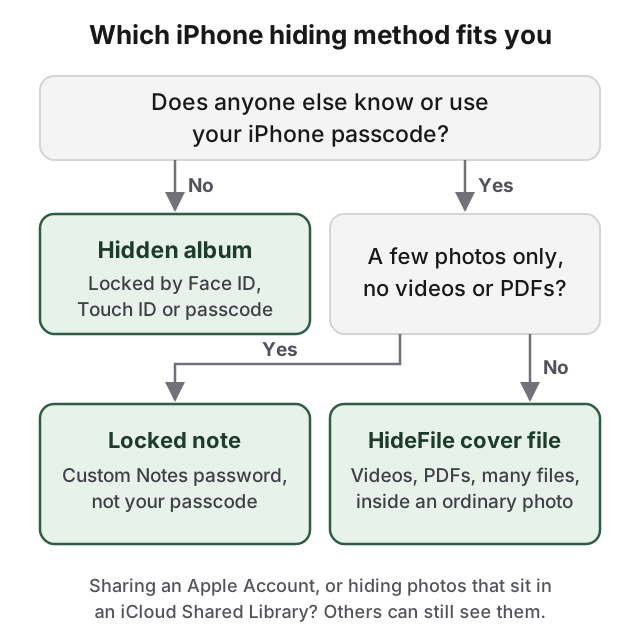
Whether that is enough depends on who might pick up your phone. The Hidden album unlocks with your device passcode, so it stops a friend scrolling through your camera roll but not a partner, parent or child who knows that passcode. A note locked with its own password covers that case for a few photos. Videos, documents and files that must survive a phone change need something else.
The steps follow Apple's current iPhone User Guide. On iOS 17 and earlier, some settings sit under Settings > Photos instead of Settings > Apps > Photos.
How to hide photos on iPhone with the Hidden album
The Hidden album is built into the Photos app. Hidden photos stay in your library, but they leave the main library view, your other albums and the Photos widget, and move to a collection called Hidden. Nothing is deleted.
Hide one photo or video
- Open the Photos app and open the photo or video.
- Tap the More button (three dots).
- Tap Hide, then confirm.
You can also touch and hold a thumbnail in the library, then tap Hide.
Hide several photos at once
- In Photos, view your library or open a collection.
- Tap Select, then tap each photo and video you want to hide.
- Tap the More button, then tap Hide.
To find the album later, open Photos, tap Collections, scroll down to Utilities, tap Hidden, then tap View Album and unlock with Face ID, Touch ID or your passcode. To unhide a photo, tap it there, tap the More button, then tap Unhide. It returns to your library and albums. The iPhone Hidden album guide covers where it lives, how the lock works and who can still see it.
Turning off Show Hidden Album removes the album from Photos
By default the Hidden album is listed under Utilities, so anyone scrolling through Photos can see that it exists, and its presence tells them something is there. You can remove the entry:
- Open Settings.
- Tap Apps, then tap Photos.
- Turn off Show Hidden Album.
With this off, hidden photos are not visible anywhere in the Photos app. They are still on the phone, and turning the setting back on brings the album back.
The Face ID lock on hidden photos is your passcode by another name
Since iOS 16, the Hidden and Recently Deleted collections are locked by default. Opening either one asks for Face ID, Touch ID or your passcode. The switch lives in Settings > Apps > Photos as Use Face ID (or Use Touch ID, or Use Passcode). Leave it on. If you turn it off, the Hidden album opens without any check.
The lock is not a second password. It accepts the same passcode that unlocks your phone, and Face ID does not change that, because the passcode is always the fallback. Anyone who knows your passcode can open the Hidden album in seconds.
A locked note is the built-in option with its own password
Notes can lock photos behind a password that is separate from your phone's passcode, which makes it the best built-in option when someone else knows your passcode. Set that password first: go to Settings > Apps > Notes > Password, choose the account (for example iCloud), then tap Use Custom Password. If you choose Use Device Passcode instead, anyone with your passcode can open the note, the same as the Hidden album.
Then lock a note with the photos in it:
- Open Notes and create a note.
- Tap the Attachments button and add the photos.
- Tap the Note Actions button, then tap Lock.
A locked note has its own gaps. The title stays visible in the notes list, so give it a dull one. Notes cannot be locked if they contain video, PDF or file attachments, and neither can Quick Notes, notes with tags, shared notes or notes that sync with non-iCloud accounts.
Adding a photo to a note copies it, so the original is still in Photos: delete it from Photos, then from Recently Deleted, or it stays there for 30 days. If Settings > Apps > Notes > Save to Photos is on, photos you take inside Notes are also saved to Photos. Apple cannot recover a forgotten custom password, and resetting it only applies to notes you lock afterwards.
Hidden photos can still surface through iCloud, Shared Library and Memories
With iCloud Photos on, anything you hide is hidden on all your devices, and it is still there on each of them. The Hidden album on your iPad, on any Mac signed in to your Apple Account and at iCloud.com holds the same photos. A shared family iPad or an old Mac logged into your account is a second way in.
An iCloud Shared Library is more exposed. Photos in a Shared Library are visible to every participant. If you hide a photo that is in the Shared Library, it moves to the Hidden album of every participant, where they can open it or unhide it. Move private photos to your personal library first: open the photo, tap the More button, then Move to Personal Library.
Photos you have not hidden can appear in Memories, featured photos and the Photos widget. To stop that, open Photos, tap Collections, tap your account in the top-right corner, and turn off Show Featured Content.
You can also lock the Photos app itself. Touch and hold the Photos icon on the Home Screen, then tap Require Face ID (or Touch ID or Passcode). Locked app content also stays out of search and Siri suggestions. Built-in apps can be locked but not hidden, and the lock still accepts your passcode.
How HideFile can help
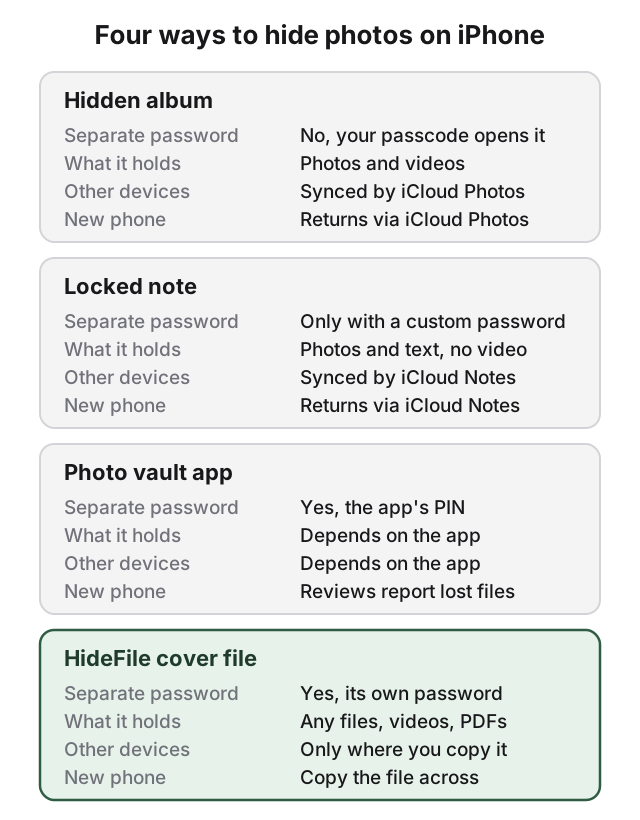
The Hidden album stops at the same places every time: your passcode opens it, iCloud copies it, and it only holds photos and videos, so PDFs, scans and documents need somewhere else. A locked note fixes the passcode problem but not the rest: no video, no files, and the title shows in the list.
The usual next step is a photo vault app, and its 1-star App Store reviews describe the same failures again and again. One reads: "When I switched phones the app did not save any of my info that was hidden in there." Others describe being asked to pay to get back into content already stored in the app, or apps that stop working: "No longer works with iOS 18" and "Seems this app is dead" are common. Some show ads, sometimes adult ads.
The underlying problem is that a vault app keeps your files in its own private storage. If the app breaks, disappears or does not move with you, the files go with it. Its icon on your Home Screen is also a hint that something is being kept private.
HideFile takes a different approach. It puts your private photos and files inside an ordinary photo, video or PDF, called a cover file. Open the cover in Photos or Files and you see a normal picture. Open it at hidefile.app with your password and you see your private files.
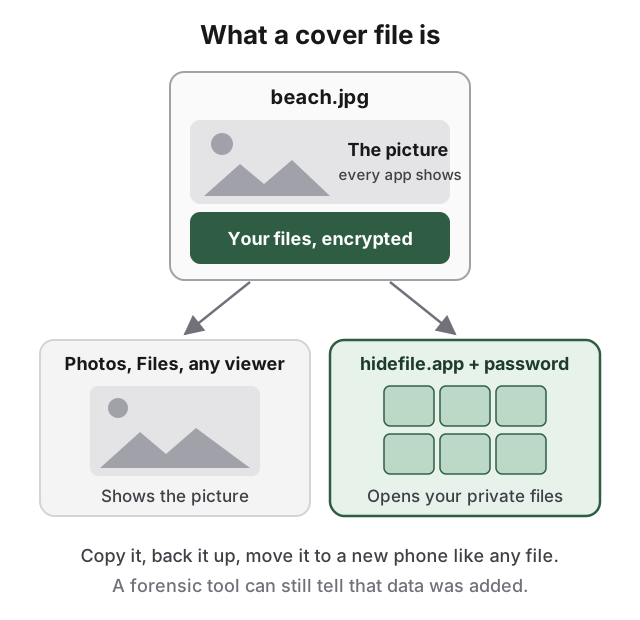
The cover has its own password, separate from your phone's passcode, and it holds photos, videos, PDFs, documents and whole folders. Because it is a normal file, you can copy it, back it up, put it on a USB drive or in cloud storage, and move it to a new phone like any other file. There is no vault icon; the cover looks like what it is.
On iPhone, HideFile runs in the browser. There is nothing to install.
Use HideFile on iPhone
- Open hidefile.app in Safari.
- Choose a cover: any ordinary photo, video or PDF.
- Add the private photos and files, and set a password.
- Save the locked cover file to the Files app.
- To open it later, go back to hidefile.app, pick the cover file and enter the password.
Your files are encrypted in the browser. They are not uploaded to a HideFile server. Once the private photos are inside the cover, delete the originals from Photos and from Recently Deleted. Keep the cover in the Files app, either On My iPhone or iCloud Drive. Apps that re-save or compress images, such as many messaging apps and social networks, can strip the hidden part, so send or back it up as a file, not as a photo to be re-shared.
HideFile stops casual snooping, not forensic tools. A purpose-built tool can see that data was added to the cover file; it cannot read the contents without the password, but it can tell they are there. Can hidden photos be detected covers what an examiner finds.
There is no password recovery: if you forget the password, the files inside are gone, and nobody, including us, can open them. It also does not protect an unlocked session. While a cover is open on screen, anyone holding the phone sees what you see. If you need protection from a trained examiner, a border search or legal pressure, HideFile is the wrong tool, and so is the Hidden album.
For Mac, see how to hide photos on Mac. To hide photos without Apple's apps at all, see how to hide photos without an app on iPhone. For the bigger picture on hiding data inside images, see steganography tools compared.
Sources
- Apple Support: Delete or hide photos and videos on iPhone
- Apple Support: Hide photos with the Hidden album
- Apple Support: Lock your notes on iPhone
- Apple Support: Add photos, video, and more to notes on iPhone
- Apple Support: Lock or hide an app on iPhone
- Apple Support: Hide people, memories, and holidays in Photos
- Apple Support: Use iCloud Shared Photo Library on iPhone
- Apple Support: Hide your photos and videos on iCloud.com