# How to hide photos without an app on Android
You do not need to download anything to hide photos on Android. Google Photos, which comes with most Android phones, has Locked Folder. Samsung phones have Secure Folder, Android 15 adds Private Space, and Files by Google has a Safe folder with its own PIN. Those are real hiding places with locks.
The no-app tricks that dominate YouTube are something else. Renaming a photo's file extension or dropping a .nomedia file into a folder makes pictures vanish from the gallery and from nothing else. A tutorial showing the rename trick has more than 190,000 views, and the part of its transcript we could read does not mention that a file manager still shows the files, or that Google Photos may already have uploaded them. This page explains what the built-in options protect, and exactly where the tricks stop.
## How to hide photos without an app on Android
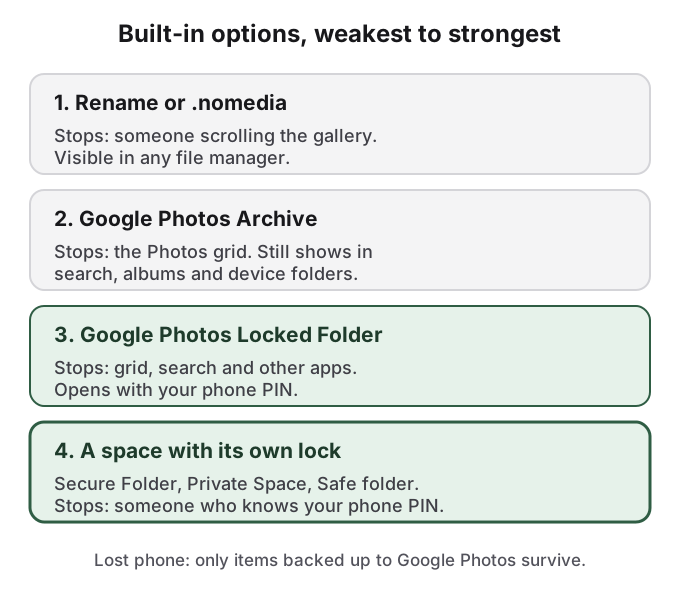
Start with what is already on the phone. The four built-in options differ in one way that matters more than any other: whether the lock is your phone's PIN or a separate one.
Each step up stops one more kind of person. Only the top step stops someone who knows your PIN.
**Google Photos Locked Folder** works on most phones with Android 6 or later (Google excludes some managed work devices and account types). Open Google Photos, tap **Collections**, then **Locked**, then **Set up Locked Folder**. To move a photo in, open it, tap **Add to**, then **Move to Locked Folder**. Items leave the grid, search, albums and memories, and other apps cannot read them. Its lock is your screen lock, and Google says you cannot set a different one. Its backup is off by default: turn on **Back up Locked Folder** under Photos settings, Backup, or a factory reset deletes everything in it.
**Google Photos Archive** is often recommended and hides much less. Google's help page says archived photos "will still be in any albums that they were added to, search results, and folders on your device." It is a way to declutter the grid, with no lock.
**Samsung Secure Folder**, at Settings, Security and privacy, More security settings, Secure Folder, can have its own PIN. Samsung's US support page says its backup "is no longer available", so moving it to a new phone means Smart Switch from a working old phone.
**Private Space** on Android 15 and later is at Settings, Security & privacy, Private space. Choose a new lock rather than the screen lock, and turn on hiding it when locked. Google says it is never restored from a device backup.
**Files by Google Safe folder**, on Android 8 and later, sits under Collections in the Files app with its own PIN or pattern. Google warns its files do not move to a new phone.
The [pillar guide to hiding photos on Android](/guides/hide-photos-on-android) has full steps and failure stories for each, and the dedicated pages cover [Secure Folder](/guides/secure-folder), [Private Space](/guides/android-private-space) and [Locked Folder](/guides/hide-photos-google-photos).
## Renaming the extension hides the picture, not the file
The rename trick goes like this: move photos into a new folder with a file manager, then rename each one so it loses its image extension, for example `beach.jpg` to `beach.jpg.bak` or plain `beach`. Gallery apps decide what to show partly by file type, so a file that no longer looks like an image drops out of the gallery.
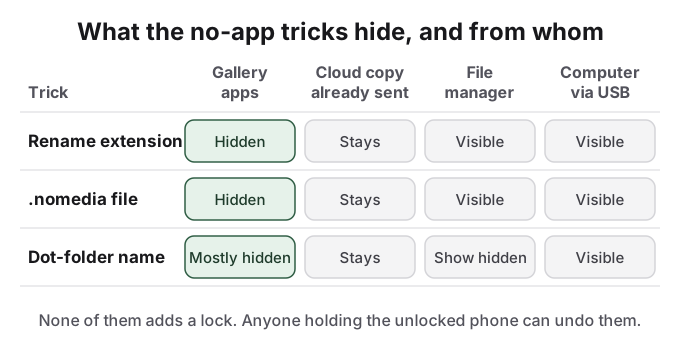
Everything else about the file stays the same. It sits in the same folder, under a name that still hints at what it was, and any file manager lists it. Anyone curious enough to rename it back gets the photo. Connect the phone to a computer over USB and it is there in the folder. The photo is also unusable until you rename it back, which makes it a chore to view and easy to lose track of.
The bigger gap is the copy you already made. If Google Photos backup is on, it probably uploaded the photo the moment it was taken. Renaming the file on the phone does nothing to that copy; it stays in your Google Photos library, on the web and on any other device signed in to your account. Check photos.google.com before you assume a renamed photo is hidden anywhere.
## A .nomedia file tells the gallery to look away, and nobody else
The .nomedia trick is older and slightly more elegant. Create a folder, put the photos in it, and add an empty file named `.nomedia`. Android's media scanner, the index that gallery apps read from, skips that folder.
This is a developer feature, not a privacy one. Android's developer reference describes it as the "Name of the file signaling the media scanner to ignore media in the containing directory and its subdirectories", and gives its purpose: "Developers should use this to avoid application graphics showing up in the Gallery." It exists so a game's icons do not clutter your photos. Google does not present it as a way to hide anything from people, and does not document how every gallery app on recent Android versions treats it, so test it on your own phone; some galleries keep showing photos until they refresh.
All three tricks work against the gallery. None works against a file manager, a computer or the cloud copy.
A file manager does not use the media index. It reads the folder directly, so the photos are all there, and the `.nomedia` file sitting next to them is a small advertisement that someone wanted them out of sight. Naming the folder with a leading dot, such as `.private`, adds a little: by convention file managers hide dot-folders until you switch on their show-hidden-files setting, which takes one tap. [Hidden folders on Android](/guides/hidden-folder-android) shows what each kind of folder hides from whom.
Gallery-level hiding has the same weakness even when it is built in. On Samsung, a commonly upvoted answer is to hide albums in the Gallery app; a Reddit user in r/samsung who tried it reported, "I did this but the photos still show up in the media picker", the screen other apps use when you attach a photo.
## The tricks are fine for clutter and wrong for privacy
The honest use for renaming and .nomedia is tidying: keeping a folder of app assets, memes or receipts out of the camera roll. They add no lock, so anyone holding your unlocked phone can undo them in seconds, and they do nothing about cloud copies. If the goal is keeping photos from a specific person, use a built-in space with a lock that person does not know: Secure Folder, Private Space or Safe folder with its own PIN. If they do not know your phone PIN either, Locked Folder with its backup on is enough.
All of the built-in options share one more limit. They keep photos in a place only that phone can read, and none of them follows you to a new phone without a backup or transfer step that often fails. Move photos out, or confirm the backup on another device, before any reset, repair or trade-in.
## How HideFile can help
HideFile is also a no-install option: it runs in Chrome at [hidefile.app](https://hidefile.app), with no Play Store app. It puts your private photos and files inside an ordinary photo, video or PDF, called a cover file. Open the cover in Gallery and you see a normal picture. Open it at hidefile.app with your password, which is separate from your phone's PIN, and you see the private files. Because the cover is an ordinary file, you can copy it to a new phone or a USB drive, or back it up like anything else.
Open hidefile.app in Chrome and tap Lock new files.
Choose a cover photo, video or PDF, set a password and add the private photos.
Tap Save; Chrome saves the cover, usually to Downloads.
Delete the originals from Gallery, from Google Photos (including photos.google.com) and from the trash.
Files are encrypted in the browser and not uploaded to a HideFile server. HideFile stops casual snooping, not forensic tools: a purpose-built tool can tell data was added to a cover, though not read it. There is no password recovery. Send covers as documents, because messaging apps that recompress photos can strip the hidden part. For a border search, a trained examiner or legal pressure, it is the wrong tool.
## Sources
- Android Developers: [MediaStore.MEDIA_IGNORE_FILENAME](https://developer.android.com/reference/android/provider/MediaStore#MEDIA_IGNORE_FILENAME) (checked October 14, 2026)
- Google Photos Help: [Hide photos and videos with Locked Folder](https://support.google.com/photos/answer/10694388?hl=en&co=GENIE.Platform%3DAndroid)
- Google Photos Help: [Archive photos](https://support.google.com/photos/answer/7362432)
- Android Help: [Use private space](https://support.google.com/android/answer/15341885?hl=en)
- Files by Google Help: [Use Safe folder](https://support.google.com/files/answer/9935264?hl=en)
- Samsung US: [Secure Folder troubleshooting and backup](https://www.samsung.com/us/support/troubleshoot/TSG10001919/)
- Reddit r/samsung: [How do you hide your pics in your gallery?](https://www.reddit.com/comments/xclq41/)
- YouTube: [2 ways to hide private photos from gallery of android device](https://www.youtube.com/watch?v=IRkpY2Vpd_s) (193,338 views on October 14, 2026)