# How to hide files in plain sight, and who each trick fools
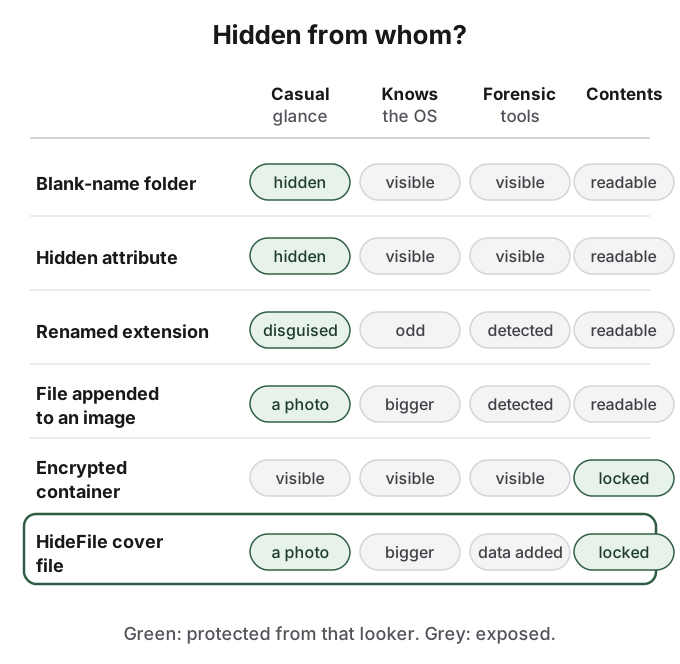
Hiding a file in plain sight means leaving it where anyone could look, disguised so nobody does. The common tricks are a folder with a blank name and a transparent icon, the operating system's hidden attribute, a misleading file extension, a file tucked inside an image, and an encrypted container. Each one hides something different from a different person. Most hide that a file exists and do nothing about what is in it, and the one that locks the contents usually announces itself.
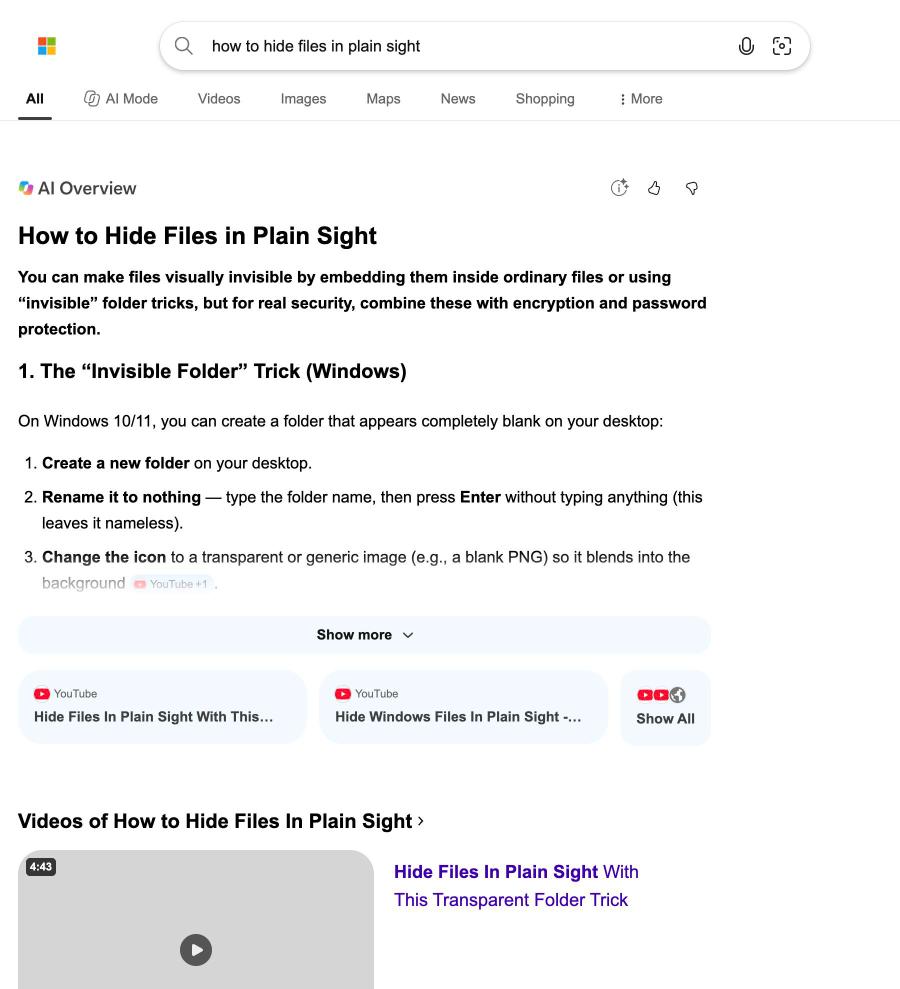
Ask Bing how to hide files in plain sight and its AI answer opens with one line saying that "for real security" these tricks should be combined with encryption, then spends its steps on the Windows "invisible folder" trick. That one line is the whole story, and this guide fills it in.
"how to hide files in plain sight" on Bing, October 14, 2026. The first answer is a desktop trick; the encryption caveat is one clause in the opening line and is never developed.
## The invisible folder fools a glance at the desktop
The trick in Bing's answer takes a minute on Windows. You create a folder, give it a name made only of an invisible character (a non-breaking space is the usual choice, because Windows rejects an empty name), and then use Properties, Customize, Change Icon to pick a blank icon. The folder vanishes into the wallpaper.
It hides the folder from one person: someone glancing at your desktop. It does not survive anything more. Pressing Ctrl+A highlights it. Switching File Explorer to list or details view shows an entry with no name. Searching for any file inside it finds it, with its full path. The files themselves are untouched and open for anyone who reaches them.
## The hidden attribute fools anyone who has not ticked one box
Every major operating system has a built-in way to mark files as hidden. On Windows, you open a file's Properties and tick Hidden, or run `attrib +h` on it, which Microsoft documents as setting the "Hidden file attribute". On macOS and Linux, a file whose name starts with a dot is hidden from normal folder views, and macOS can also hide files with a flag.
The reveal is just as built in. In Windows 11 File Explorer, Microsoft's own instructions are to "Select View > Show, then select Hidden items". On a Mac, pressing Command, Shift and the full stop in a Finder window shows hidden files. Anyone who has ever troubleshot a computer knows these switches. The hidden attribute keeps clutter out of the way; it was never designed to keep people out.
## A renamed extension fools people, not software
Renaming `budget.xlsx` to `driver.dll` or `holiday.jpg` to `notes.tmp` makes the file look boring or broken. It helps that Windows has a setting called Hide extensions for known file types, so many people never see extensions at all.
But a file's real type is written in its first few bytes, not in its name. Search tools, forensic software and many apps identify files by those bytes and list a "notes.tmp" that is really a JPEG as a picture. The disguise also breaks your own workflow: you have to rename the file back every time you want to open it, and a confused relative who double-clicks it sees an error that invites curiosity.
## A file inside an image fools viewers, not file sizes
The next step up is hiding a file inside a picture. The classic method, shown in many YouTube tutorials, is a one-line Windows command, `copy /b photo.jpg + archive.zip combined.jpg`, which joins a zip archive onto the end of a photo. Image viewers stop reading at the photo's end marker and show the picture; zip tools read the archive from the end of the file and open it.
A file with data inside it still opens as an ordinary picture. That is all a casual viewer ever sees.
This fools anyone who opens the photo, which is a real improvement over a hidden folder: a picture of hills invites no questions. It does not fool anyone who looks at the file size, since a 3 MB photo carrying a 400 MB archive is a 403 MB photo. Any tool that reads the whole file finds the archive at once, and unless the zip itself is encrypted, its contents are open. True steganography, which changes the pixels themselves, holds far less and has its own detection problem; [how steganography works](/guides/how-steganography-works) explains the methods, and [can hidden photos be detected](/guides/can-hidden-photos-be-detected) explains what finds them.
## An encrypted container locks the contents and announces itself
An encrypted container, such as a VeraCrypt volume or a password-protected archive using AES encryption, solves the opposite problem. Without the password, nobody can read what is inside. But nobody can miss it either. A file named `private.zip` that asks for a password, or a large file of random-looking bytes, tells everyone exactly what you are doing. Vault apps on phones have the same trade-off: the contents are locked, and the icon on the home screen advertises that something is being kept private, as [is a photo vault app safe](/guides/is-photo-vault-safe) discusses.
Each trick protects against one looker at most. Only encryption keeps the contents locked when the hiding fails.
## Hiding and locking are two separate jobs
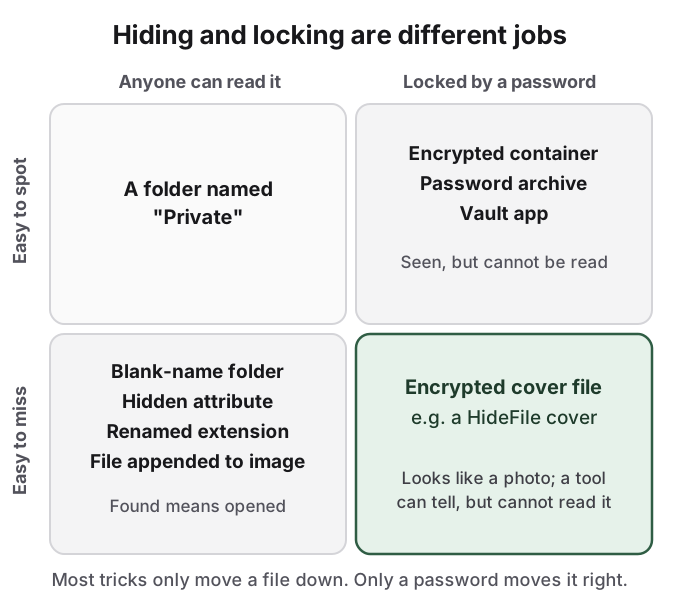
The pattern across all five tricks is that hiding a file and locking it answer different questions. Hiding answers "will anyone notice this file?" Locking answers "if they do, can they read it?" The folder, attribute, extension and appended-file tricks answer only the first, and only for a casual looker. The encrypted container answers only the second.
Most tricks only make a file harder to spot. Only a password makes it unreadable.
So decide who you are hiding from. If it is a child who borrows the laptop for games, the hidden attribute is enough. If it is a partner or parent who knows their way around a computer, every reveal switch above is one click away, and you need the contents locked. If it is an employer's IT department, a forensic examiner or the police, no trick on this page changes the outcome, and the honest advice is to keep the data off that device.
## How HideFile can help
HideFile combines the two jobs in the bottom-right box. At [hidefile.app](https://hidefile.app), in any modern browser on a phone or computer, you choose an ordinary photo, video or PDF as a cover, add the private files, and set a password. The files are encrypted in the browser and stored inside the cover, which still opens as a normal picture, video or document anywhere else. Open it at hidefile.app with the password and the files appear as a private gallery. Nothing is uploaded to a HideFile server, and there is no app icon to give you away.
The limits are the same ones this guide applies to every other trick. HideFile stops casual snooping, not forensic tools: a purpose-built tool can tell that data was added to the cover, though it cannot read the contents without the password. The cover is larger than the picture alone would be. There is no password recovery. Apps that re-encode photos can strip the hidden part, so send and back up the cover as a file. For a trained examiner, a border search or legal pressure, it is the wrong tool. For how it compares with dedicated steganography software, see [steganography tools](/guides/steganography-tools).
## Sources
- Microsoft Support: [File Explorer in Windows: view hidden files and folders, file name extensions](https://support.microsoft.com/en-us/windows/view-hidden-files-and-folders-in-windows-97fbc472-c603-9d90-91d0-1166d1d9f4b5) (checked 2026-10-14)
- Microsoft Learn: [attrib command](https://learn.microsoft.com/en-us/windows-server/administration/windows-commands/attrib) (checked 2026-10-14)
- Microsoft Learn: [copy command](https://learn.microsoft.com/en-us/windows-server/administration/windows-commands/copy)
- W3C: [PNG Specification (Third Edition)](https://www.w3.org/TR/png-3/), IEND chunk
- Wikipedia: [Steganography](https://en.wikipedia.org/wiki/Steganography) (checked 2026-10-14)
- Reddit, r/Steganography: [hiding .txt files in images?](https://www.reddit.com/comments/1p032xi/)
- Bing web search, "how to hide files in plain sight", captured October 14, 2026