# Hidden folders on Android: what each kind hides, and from whom
A hidden folder on Android can mean four different things. A folder whose name starts with a dot is hidden from file managers by convention. A folder with a `.nomedia` file inside is hidden from gallery apps. The Safe folder in Files by Google is hidden behind its own PIN. And Private Space, on Android 15 and later, hides an entire second profile of apps and files.
Only the last two have a lock. The first two are filing conventions that a curious person undoes with one setting, and that a computer connected over USB ignores entirely. Which one you need depends on who you are hiding the folder from, so this page goes through each, then puts them side by side.
## How to make a hidden folder on Android
The simplest hidden folder is a dot-folder. Android grew out of Linux, where a file or folder whose name starts with a dot is treated as hidden, and many Android file managers follow that convention.
Open your file manager, such as Files by Google or Samsung's My Files.
Go to internal storage and create a new folder.
Give it a name that starts with a dot, for example .archive.
Move the photos or files into it.
The folder disappears from the file manager's normal view, and most gallery apps do not list photos inside it. Menu names differ between file managers, and behaviour differs between gallery apps and Android versions, so check your own gallery after moving a test photo in.
That is the whole protection. The folder has no password, the files are not encrypted by it, and anyone who switches on the file manager's show-hidden-files option sees it, name and all. A computer connected over USB will generally list it like any other folder.
## A .nomedia file hides a folder from the gallery and nothing else
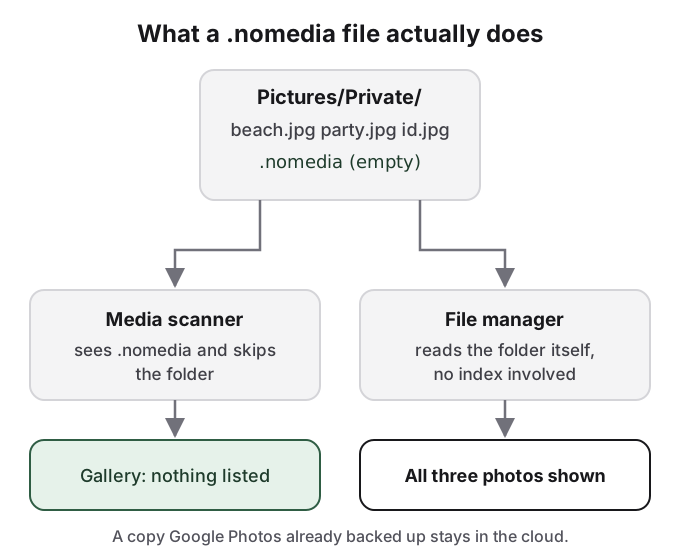
The second kind keeps an ordinary-looking folder but adds an empty file named `.nomedia` inside it. Android's developer reference defines it as the "Name of the file signaling the media scanner to ignore media in the containing directory and its subdirectories." The media scanner builds the index that gallery apps and photo pickers read from. A folder it skips does not appear in them.
.nomedia changes what the media index contains. It changes nothing about the files.
The same page says why it exists: "Developers should use this to avoid application graphics showing up in the Gallery." It is how a game keeps its textures out of your camera roll. Google does not describe it as a privacy feature anywhere we could find, and does not document how every gallery treats it on current Android versions. Some galleries keep showing photos until they rebuild their index.
A file manager does not consult the media index; it reads the folder itself, so every photo is in plain view, beside a `.nomedia` file that signals someone wanted them out of sight. And if Google Photos backed up those photos before you moved them, the cloud copies are still in your library. Combining the two tricks, a dot-folder with a `.nomedia` file inside, hides from both galleries and the default file manager view, and still from nobody who looks.
## Showing hidden files takes one setting
The reverse search, how to show hidden files on Android, is the clearest evidence of how thin dot-folder hiding is. Most file managers have an option with a name like "Show hidden files" in their settings or menu. Turn it on and every dot-folder on the phone appears. On a shared or family phone, assume anyone who uses a file manager knows where that switch is.
## Files by Google Safe folder is the first hidden folder with a lock
The Safe folder is the built-in hidden folder that actually locks. It is in Files by Google on Android 8 and later.
Open Files by Google and tap Collections.
Tap Safe folder and choose a PIN or Pattern.
To add a file, tap its More menu, then Move to Safe folder.
Google lists what it blocks: Safe folder items do not appear in search or categories, third-party apps cannot open them, and you cannot share them, back them up to Google Drive or take screenshots of them. The PIN is separate from your screen lock, so knowing your phone PIN is not enough.
Its limits are in Google's own words. "If you forget your PIN or Pattern, you can't access your files," and resetting the Safe folder means the files "will be permanently lost". Google adds that "anyone who gains unauthorized access to your device's internal storage may be able to access them." And the files do not travel: Google tells you not to "copy encrypted safe files from old phone to new phone", and warns that clearing storage or cache with other apps can corrupt them. A Safe folder lasts exactly as long as the phone it is on.
## Private Space hides a whole profile, and Google lists how it leaks
Private Space goes further than any folder. It is a separate Android profile with its own copies of apps and its own storage. When locked, it is completely stopped and absent from the launcher, recent apps, the photo picker, the file browser and Settings. Set it up at **Settings > Security & privacy > Private space**, pick **Choose new lock** so it does not open with your screen lock, and turn on **Hide private space when it's locked**. Files you add through its **+** button, then **Add files**, land in a Downloads folder inside the private space.
A hidden Private Space is hard to spot from the phone itself. Searching for "private space" shows a result even on phones without one, so its presence proves nothing. Google is clear about where it can be uncovered: by "others who install apps on your phone", by anyone who connects the phone to a computer with Android Debug Bridge (adb), by "other apps which can detect the usage of private space" and through device logs.
Two more traps. If you sign in to Private Space with the same Google account as the main profile, your synced photos and files are visible outside it; Google recommends an account used nowhere else. And it never survives a phone change: "when you restore the device from a device backup, private space won't be restored." The [Private Space guide](/guides/android-private-space) covers setup in full.
## Who can see each kind of hidden folder
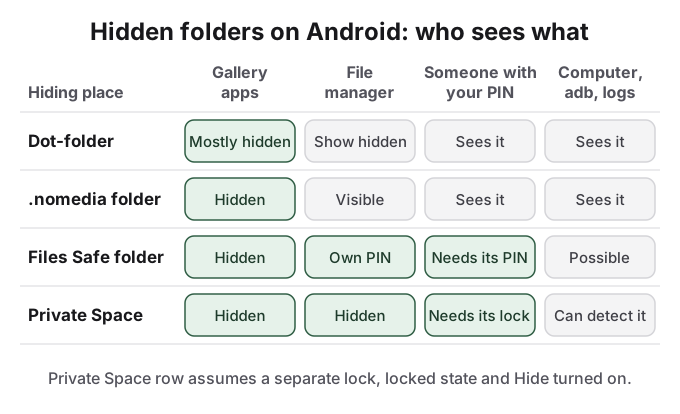
The four kinds line up cleanly once you ask who is looking: a gallery app, a file manager, a person who knows your phone PIN, or a computer.
Dot-folders and .nomedia stop software. Only a separate lock stops a person.
Two other built-in options are often called hidden folders but are not folders you can browse. Google Photos Locked Folder lives inside the Photos app and opens with your screen lock; see [hiding photos in Google Photos](/guides/hide-photos-google-photos). Samsung Secure Folder is a locked space similar to Private Space, with its own PIN option; see the [Secure Folder guide](/guides/secure-folder). For every method together, see [how to hide photos on Android](/guides/hide-photos-on-android).
## How HideFile can help
Every hidden folder above shares a flaw: it is a place. A dot-folder or `.nomedia` folder is a place anyone can browse to. Safe folder and Private Space are locked places that exist on one phone only and can be detected by a computer or another app.
HideFile does not create a folder at all. It puts private photos and files inside an ordinary photo, video or PDF, called a cover file, encrypted in the browser with a password that is separate from your phone's PIN. In a file manager or gallery the cover is just a picture. At [hidefile.app](https://hidefile.app), with the password, it opens to show the private files. Because it is a normal file, it can live in any folder, be copied to a new phone or a USB drive, and be backed up like anything else. On Android it runs in Chrome; there is no Play Store app.
Open hidefile.app in Chrome and tap Lock new files.
Choose a cover, set a password and add the files.
Tap Save to download the cover, then delete the originals and any Google Photos copies.
Files are not uploaded to a HideFile server. HideFile stops casual snooping, not forensic tools: a purpose-built tool can tell data was added to a cover, but cannot read it without the password. There is no password recovery. For a border search, a trained examiner or legal pressure, it is the wrong tool.
## Sources
- Android Developers: [MediaStore.MEDIA_IGNORE_FILENAME](https://developer.android.com/reference/android/provider/MediaStore#MEDIA_IGNORE_FILENAME) (checked October 14, 2026)
- Files by Google Help: [Use Safe folder](https://support.google.com/files/answer/9935264?hl=en)
- Android Help: [Use private space](https://support.google.com/android/answer/15341885?hl=en)
- Android Open Source Project: [Private space](https://source.android.com/docs/security/features/private-space)
- Google Photos Help: [Hide photos and videos with Locked Folder](https://support.google.com/photos/answer/10694388?hl=en&co=GENIE.Platform%3DAndroid)